About Aesthetic Project & Task Manager for Beginners
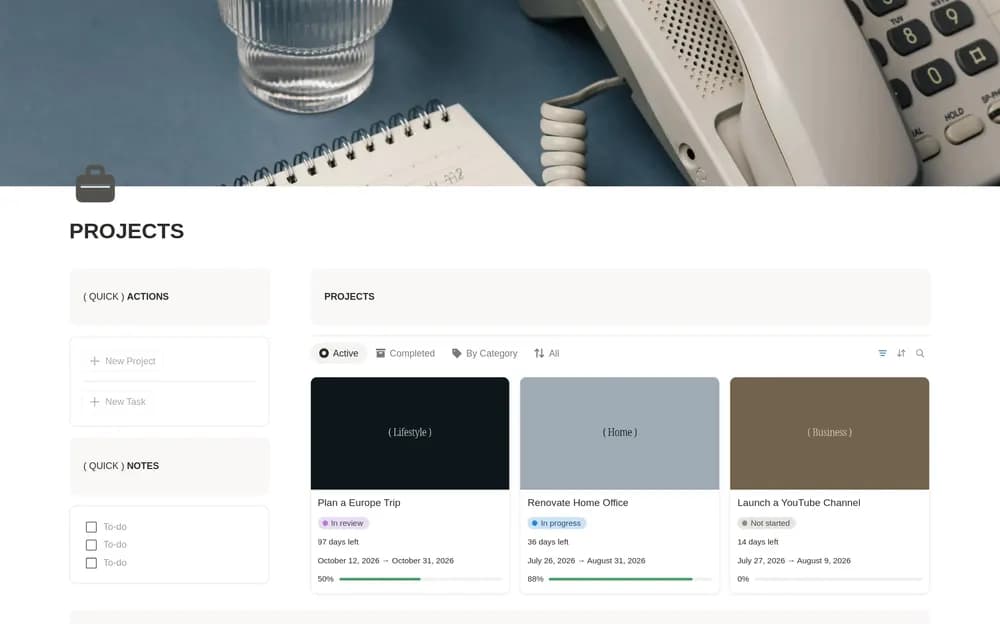
Manage projects and related tasks in Notion with automatic progress, project pages, sub-tasks, quick actions, and table, board, and timeline views.
What’s included
- Project manager with status, category, dates, and automatic progress
- Task manager with priorities, due dates, status, and notes
- Project pages listing related tasks
- Table, board, calendar, gallery, timeline, and today views
- Sub-tasks, quick actions, and quick notes
How to use it in practice
Create one real project and add five to ten tasks connected to it with due dates and priorities. Break the largest task into sub-tasks. Complete a few during the week and check that the project’s progress updates, then try the timeline view to see whether the dates are realistic.
Set it up in your workspace
- Open the original Notion Marketplace listing and add the template to your chosen workspace while signed in. Keep its example records until you understand how the pages connect.
- Create one real project and add five to ten tasks connected to it with due dates and priorities.
- Try one complete example before adding a large backlog. Check that its views and any calculations show what you expect, then replace the sample content with your own.
Who it suits and what to consider
Beginners managing personal, work, study, or home projects who want relations already set up. The license limits use to individuals or internal teams and forbids passing copies to clients. Progress reflects completed tasks rather than effort, so uneven task sizes can skew it.