About Productivity Hub
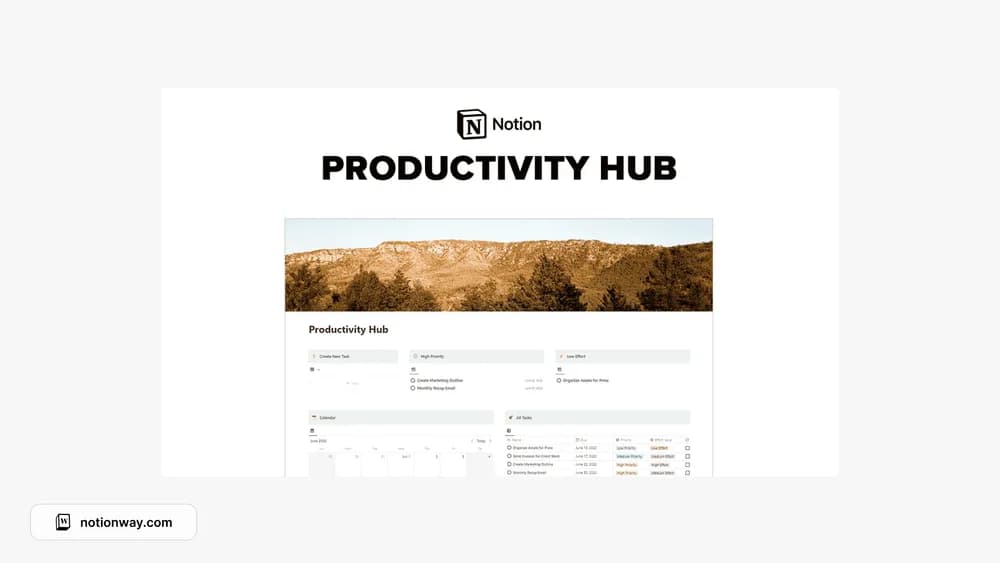
A productivity hub is useful if the starting page makes your next action clearer. The source describes this as a task-oriented dashboard. Check the creator preview for how tasks are added, organized, and reviewed before treating it as your main system.
What’s included
- A task dashboard with priority and effort filters
- A calendar view and dedicated notes section
- Reusable page templates for new tasks and notes
How to use it in practice
Enter a few tasks with different effort levels and priorities, then check the filtered views. Choose work based on both importance and the time you have, keeping a short next-action note inside each task. Test any supplied automation with sample records before bringing over an existing backlog. A useful dashboard should make unfinished work easier to find without requiring frequent manual rearrangement.
Set it up in your workspace
- Follow the original creator’s checkout or access instructions to obtain the Notion page. Open that page while signed in, then duplicate it into the workspace you want to use.
- Add a normal day of work and try the main dashboard view. Keep the parts that help you choose what to do next.
- Try one complete example before adding a large backlog. Check that its views and any calculations show what you expect, then replace the sample content with your own.
Who it suits and what to consider
People looking for a central task workspace. The creator advertises task automation but does not explain every mechanism in the public copy. Inspect the delivered properties and current Notion requirements before assuming a specific action runs automatically.