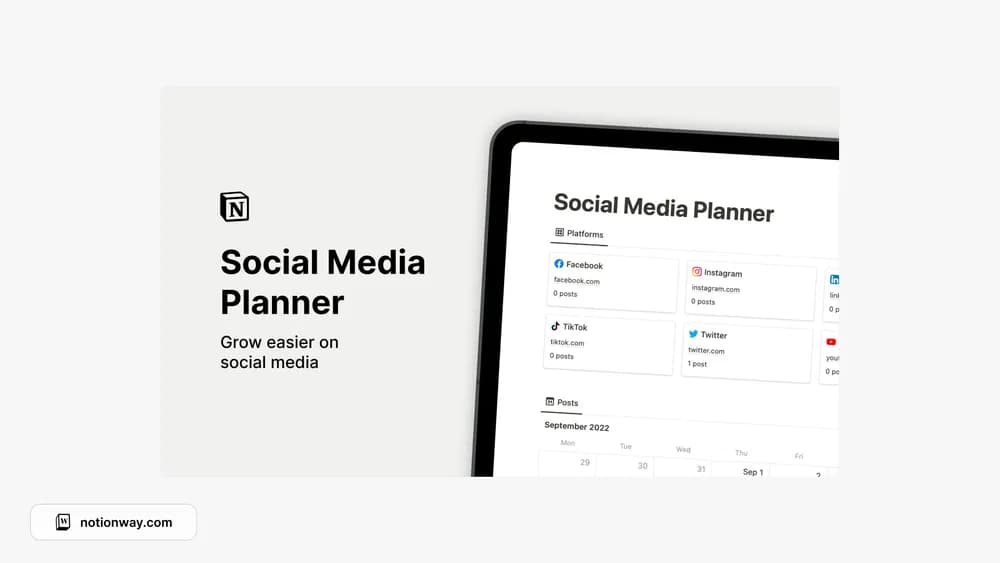
About Social Media Planner & Calendar
This planner gives social publishing a place beside ideas and drafts. It is useful for seeing the work ahead, but planning in Notion does not automatically publish a post. Keep the production status visible so the calendar reflects what is actually ready.
What’s included
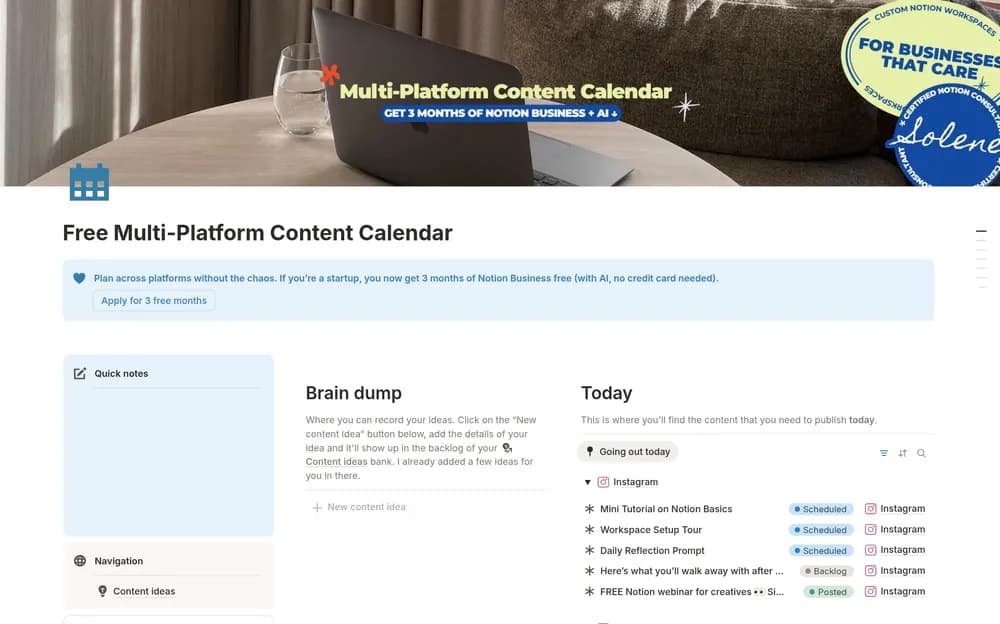
- A space for creating content across social platforms
- Planning for what will be posted and when
- A shared Notion home for upcoming social content
How to use it in practice
Plan a small batch with the copy, asset, channel, and intended date kept together in your working page. Check that each post has a clear purpose before filling the calendar. Review what is still unfinished ahead of the publishing day and leave room for changes. Reuse an idea across channels only after adapting the format to the audience there.
Set it up in your workspace
- Follow the original creator’s checkout or access instructions to obtain the Notion page. Open that page while signed in, then duplicate it into the workspace you want to use.
- Plan your next week of posts and mark what still needs drafting or assets. Use dates that match your real publishing capacity.
- Try one complete example before adding a large backlog. Check that its views and any calculations show what you expect, then replace the sample content with your own.
Who it suits and what to consider
Creators and small teams planning upcoming posts. A planning choice for a manageable social schedule. Publication still needs to happen through the relevant platform or a separately configured publishing service.