About Client Portal
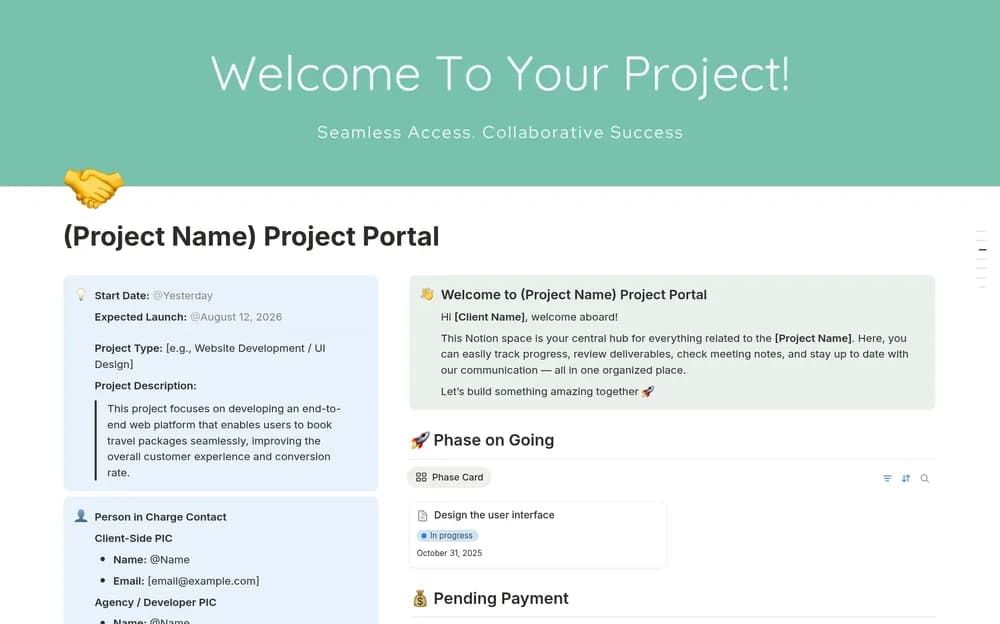
Nootionery’s free Client Portal with Task Management is a candidate for keeping a client-facing project workspace in Notion. A useful portal answers the questions that otherwise become repeated emails: where is the latest work, what needs feedback, and what happens next? Check the creator’s preview for how those answers are presented. Before sharing a real project, open the pages from the client’s perspective and follow their links. Keep internal working notes in the appropriate private area, and make sure the client can understand the workspace without a guided tour.
What’s included
- Tasks with parent and subtask structure
- A project timeline connected to the work
- A client-facing home for assets, invoices, and updates, with internal work kept separately
How to use it in practice
Build one sample project and open the shared portal as a client before inviting anyone. Check that the progress summary is understandable and that internal notes are outside the shared area. Record approvals and requested changes beside the relevant deliverable. Keep the portal current at an agreed rhythm so the client knows when to expect a useful update.
Set it up in your workspace
- Open the original Notion Marketplace listing and add the template to your chosen workspace while signed in. Keep its example records until you understand how the pages connect.
- Set up a sample project with an update and a feedback request. Review the shared pages and linked resources before inviting a real client.
- Try one complete example before adding a large backlog. Check that its views and any calculations show what you expect, then replace the sample content with your own.
Who it suits and what to consider
Independent professionals sharing project context with a client. Suited to project collaboration with clients. Sharing permissions need deliberate setup and testing; the template structure alone does not establish who can access every linked page.